
Main Interface
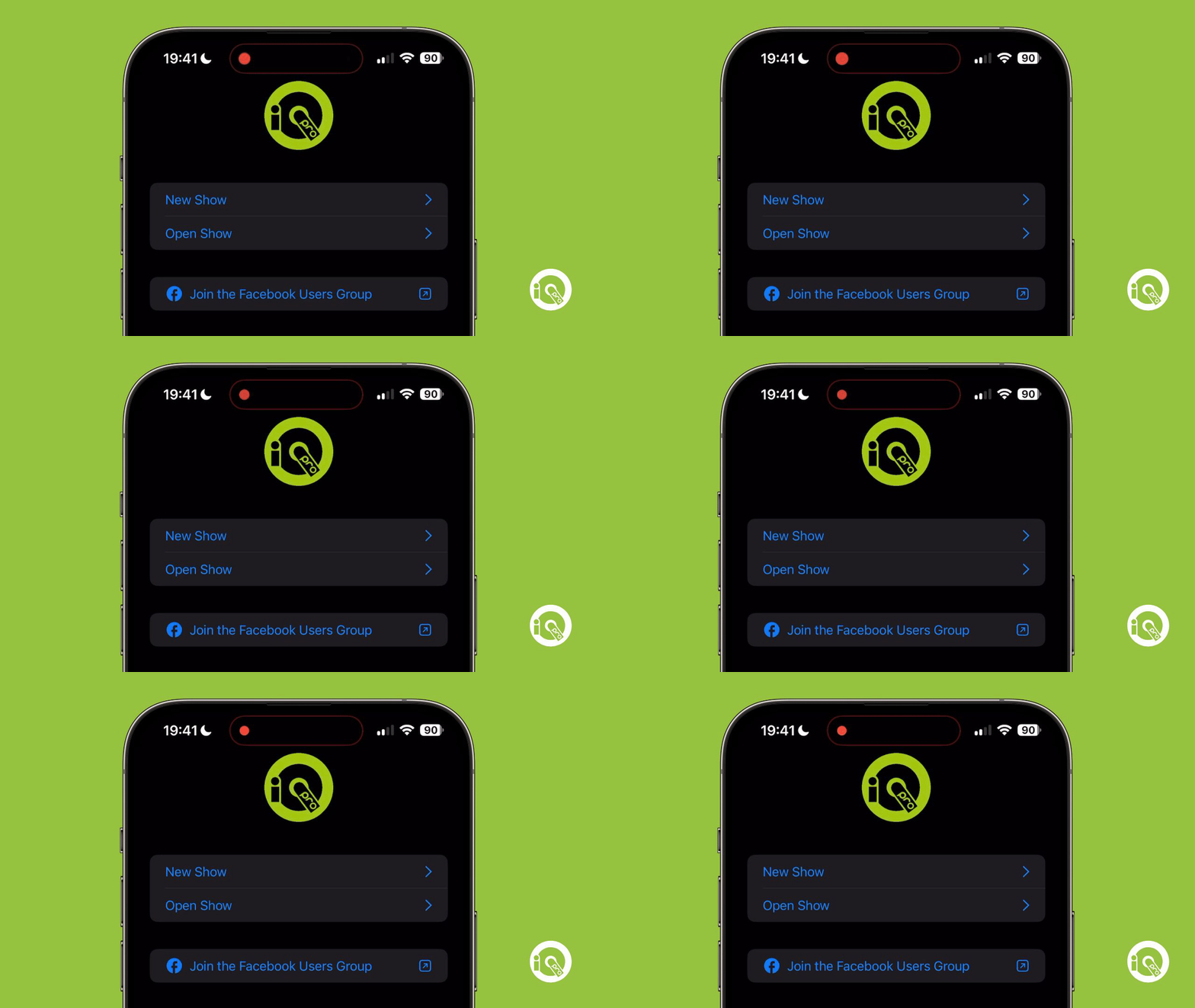
When you've logged in and either chosen a subscription plan or you're a lifetime license holder then you'll be greeted to the main menu which should look something like this:
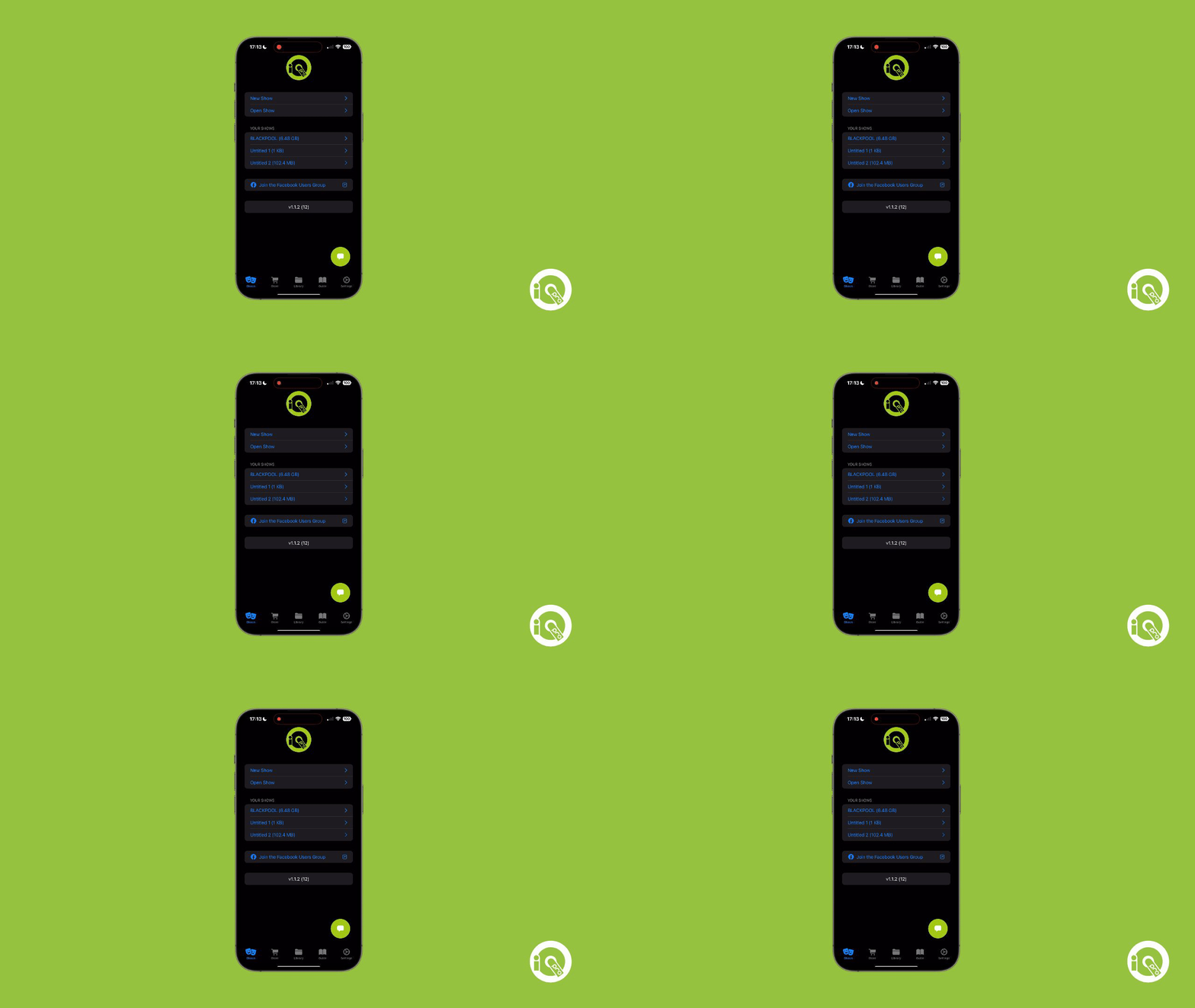
At the top you'll see the option to create a new show, by simply pressing on the New Show button will create a new show for you to work with like this:
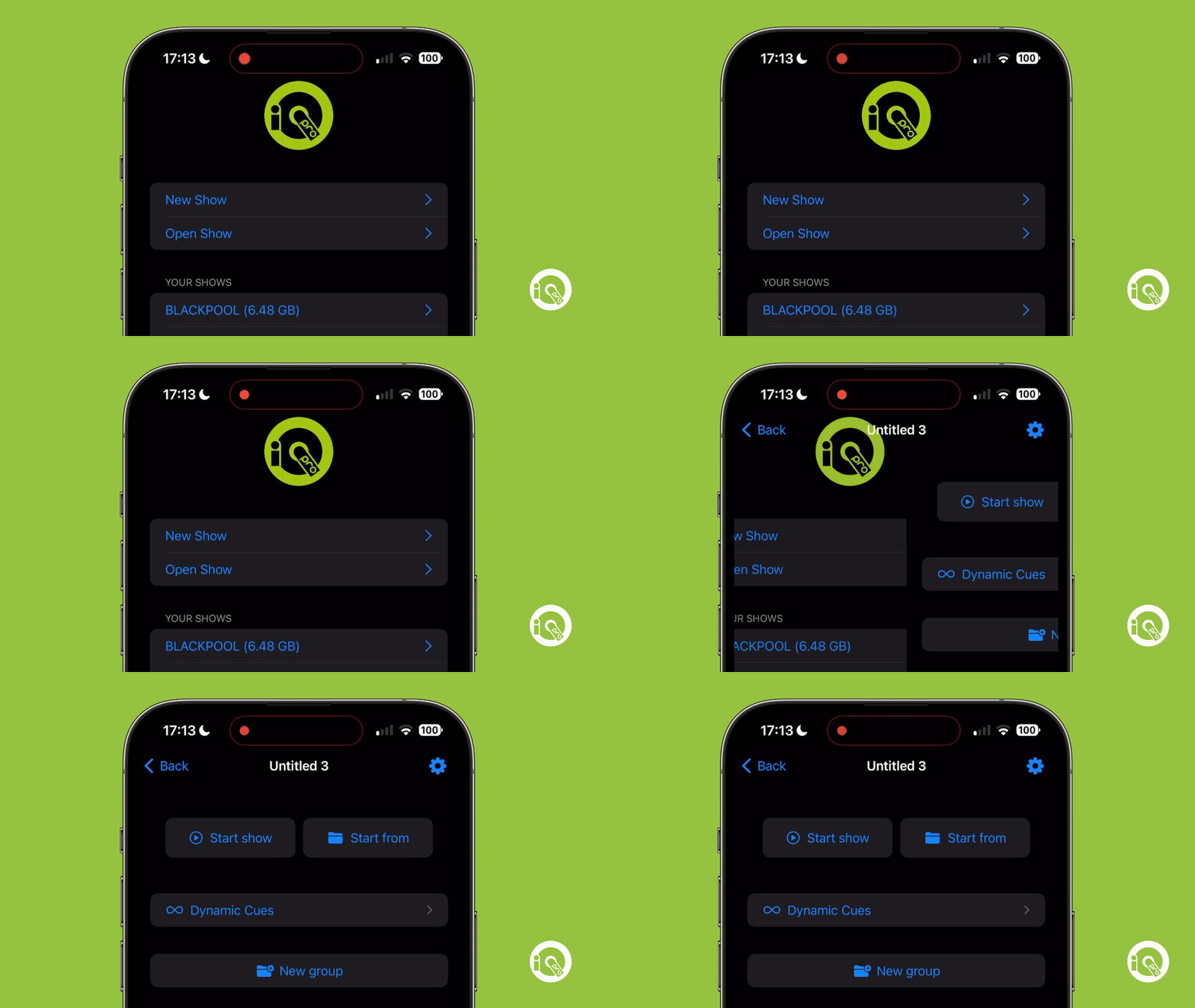
Underneath there is the Open Show button, if you've exported your show or downloaded one from our Facebook Group or on this website then you can import it within the app/Y
You'll need to make sure that the .iqpro file is stored in your Files app, we recommend keeping it all local in the On My Phone location
After this you'll then have a list of all your shows you've created for quick selection to either perform or edit
Navigating the tabs
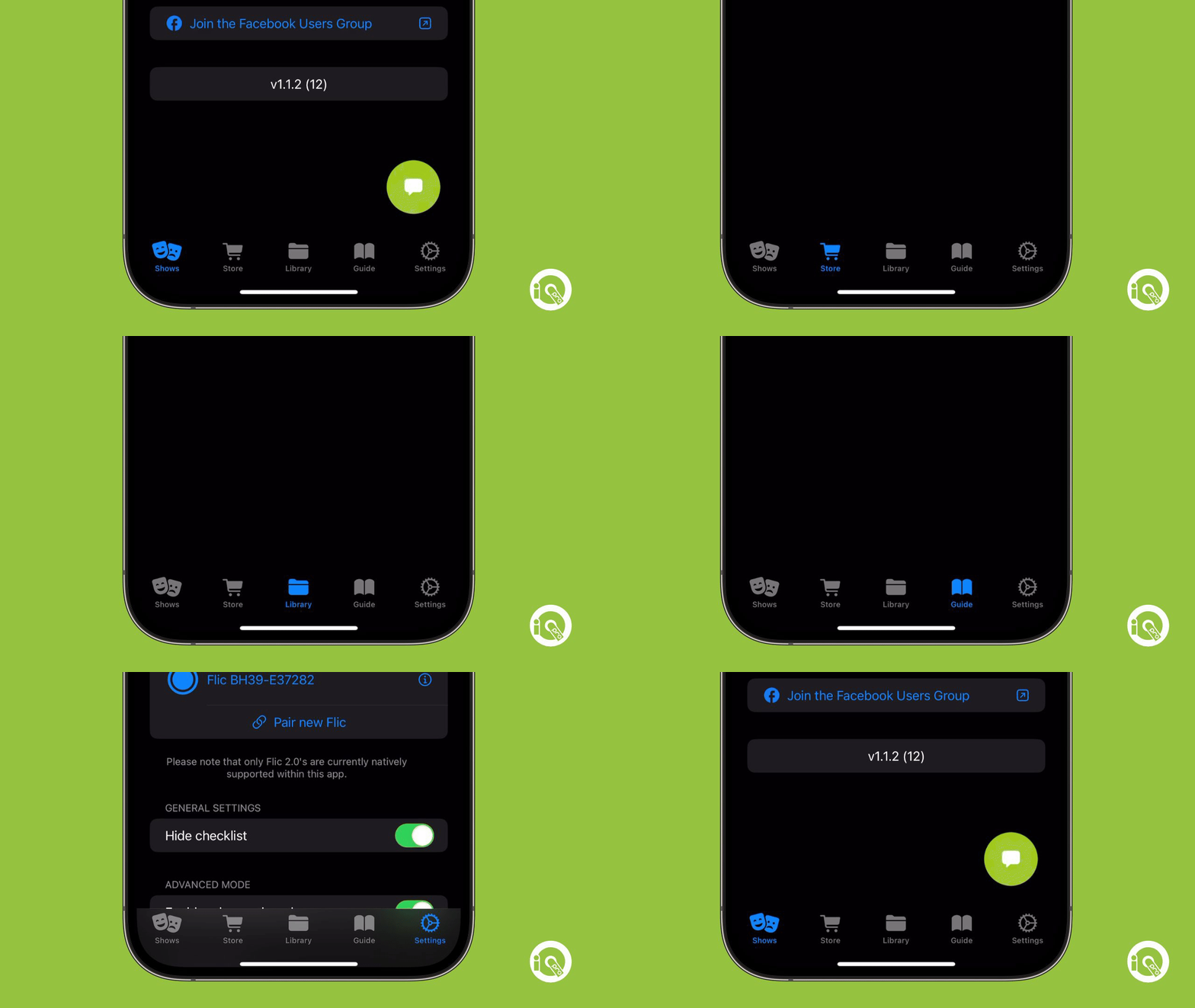
Shows
The 'Shows' tab acts as your digital command center, where all your projects are neatly arrayed. This is where your creative endeavors begin and continue. Whether it's about initiating a new show or revisiting and refining an existing one, this tab ensures all your shows are organized and readily accessible.
Store
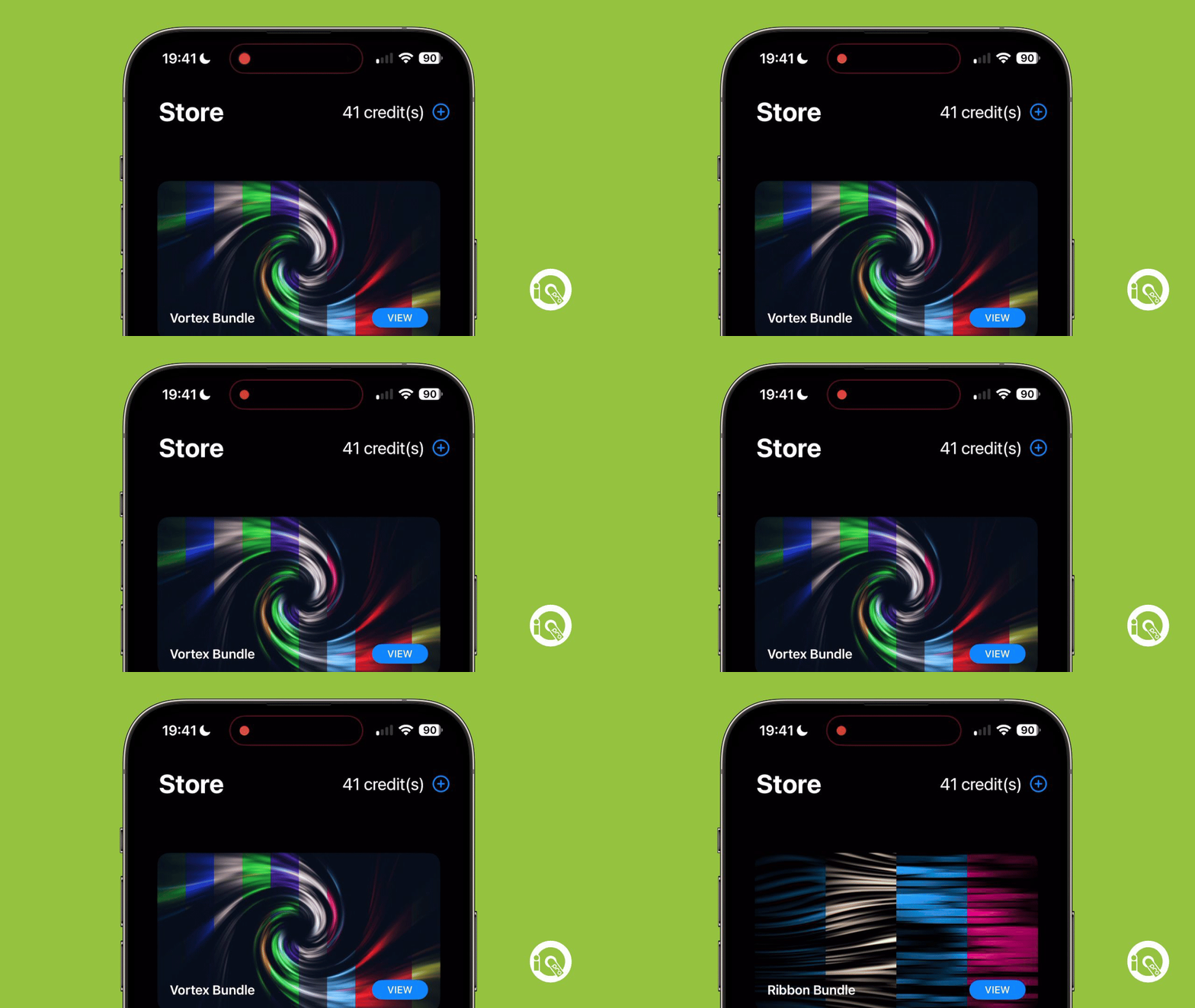
Within the 'Store' tab, a diverse array of built-in content awaits. Here, you can browse through an extensive selection of professional-grade audio and video files. This reservoir of resources is indispensable for enriching your shows, allowing you to incorporate high-quality effects and elements without the hassle of external sourcing.
Library
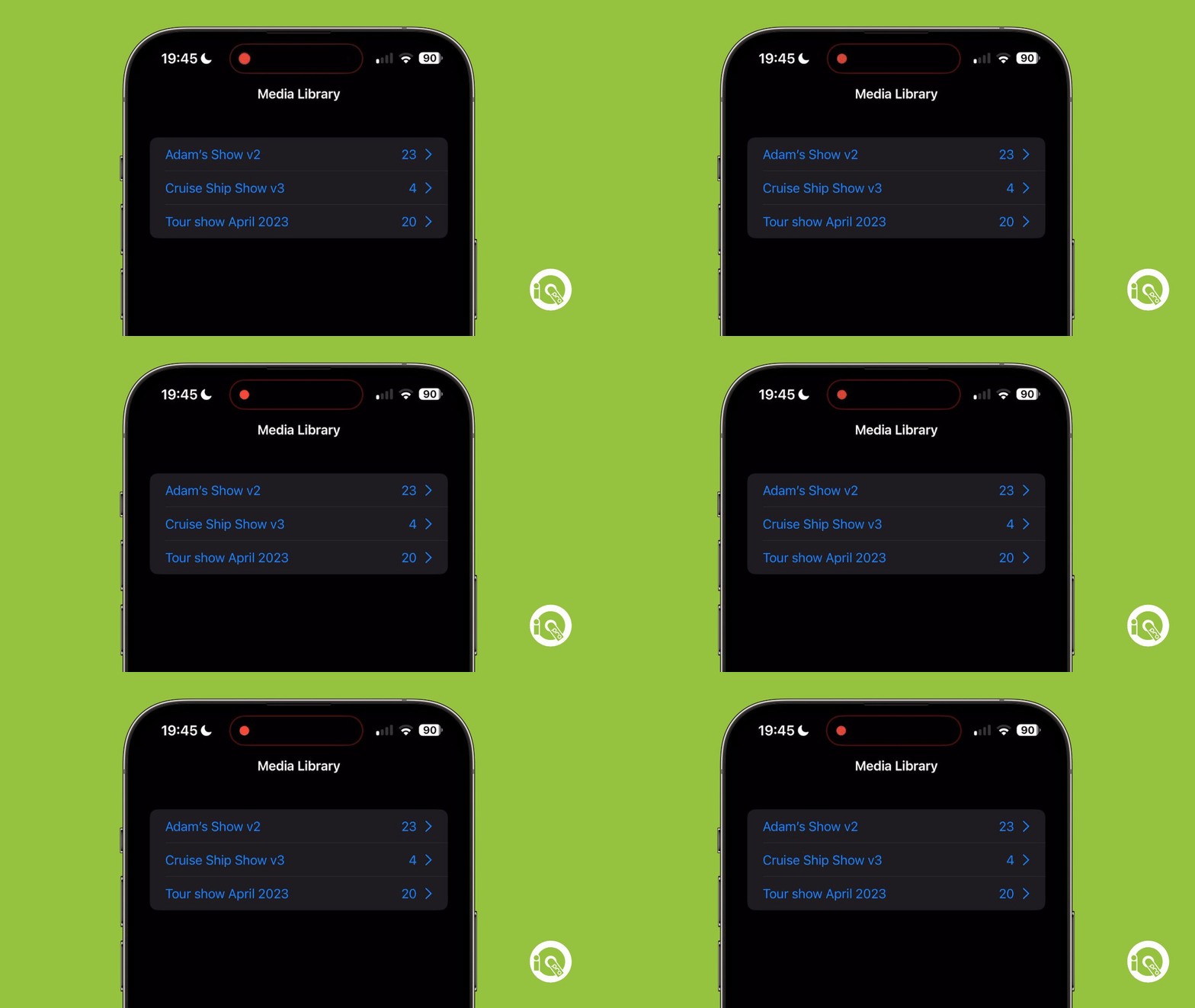
The 'Library' tab is your organized repository, where every file related to your shows is categorized and stored. From audio clips and video files to lighting cues, everything is sorted for quick retrieval. This systematic arrangement is key to smoothening your workflow, ensuring you have all the necessary materials at your fingertips when the curtain rises.
Guide
Settings
[settings tab|top]
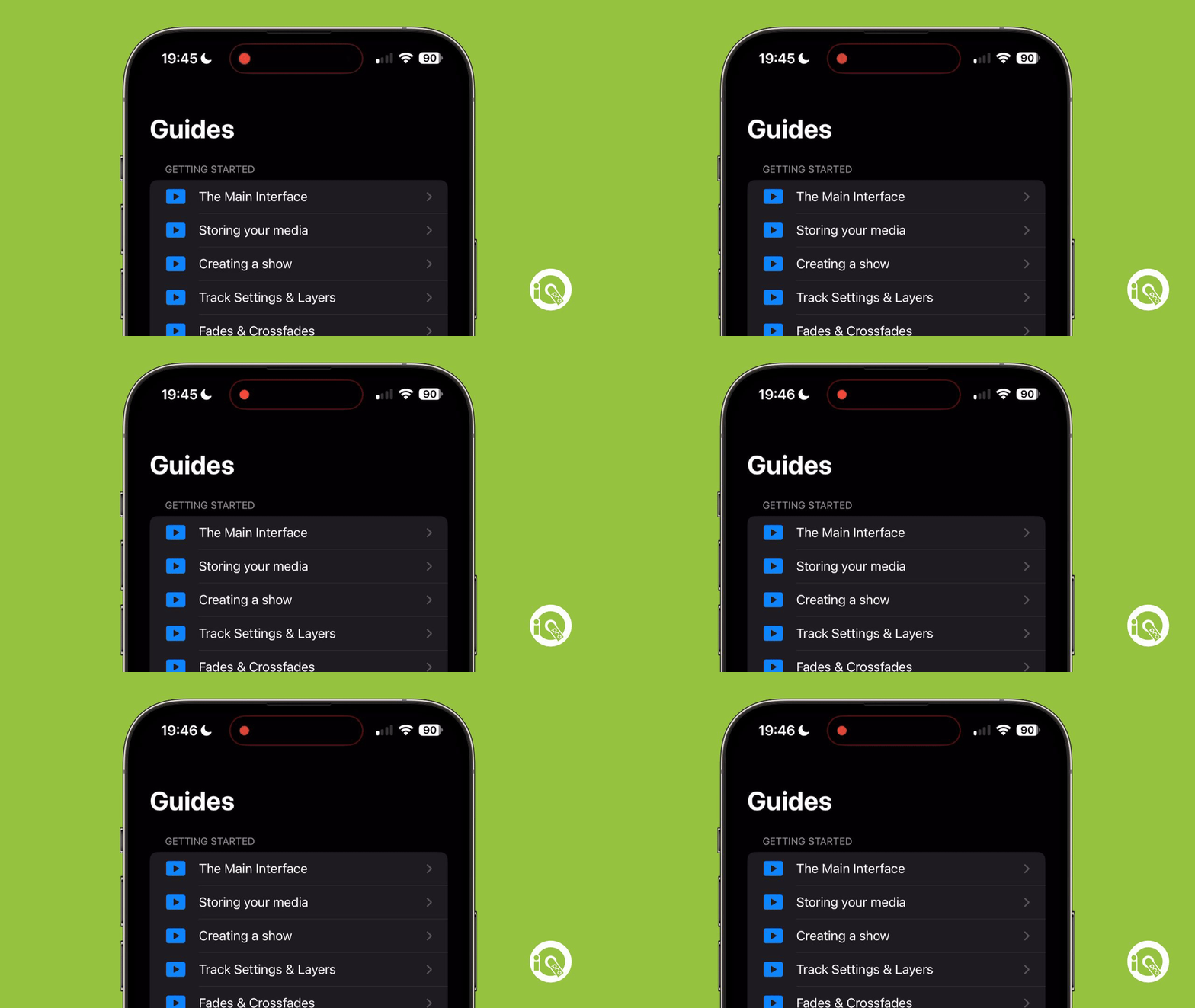
For performers keen on mastering iQ Pro, the 'Guide' tab offers a wealth of information. This includes comprehensive documentation, tutorials, and tips to help you navigate and make the most of the app's functionalities. Meanwhile, the 'Settings' tab personalizes your experience, offering a suite of customization options and preferences to adjust the app according to your needs. From performance settings to workflow adjustments, this tab ensures that iQ Pro aligns perfectly with your creative vision and technical demands.