
Getting Started
Basic Concepts
If you've never used a show control app or have never thought about putting multimedia into your show then this guide should help you understand the terminology used in iQ Pro.
Layers
In iQ Pro we have a system called layers, if you've come from a video editing background then you may know what layers are, if not here's a nice analogy: Think of layers as translucent sheets stacked on top of eachother, each sheet represents a cue within iQ Pro, this allows multiple cues to run at the same time without clashing into eachother.
Every cue has the option to select which layer you want it to be on, we have 100 layers you can choose from
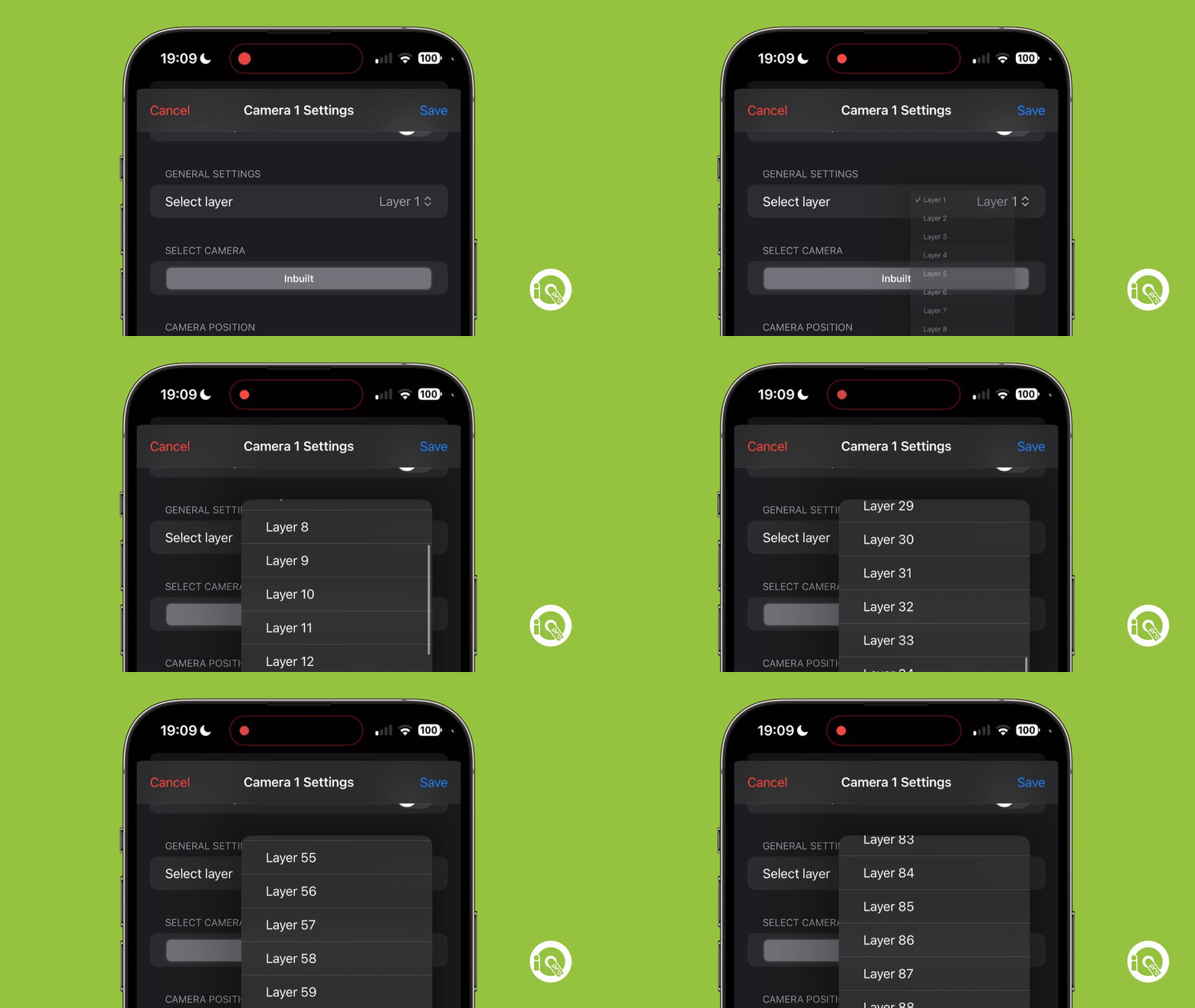
It's important to get into the habit of making sure you have every cue on its own layer as if you decide to use a crossfade transition between two cue then they need to be on separate layers otherwise the original cue will just be replaced with the second cue and won't have that nice transition effect.
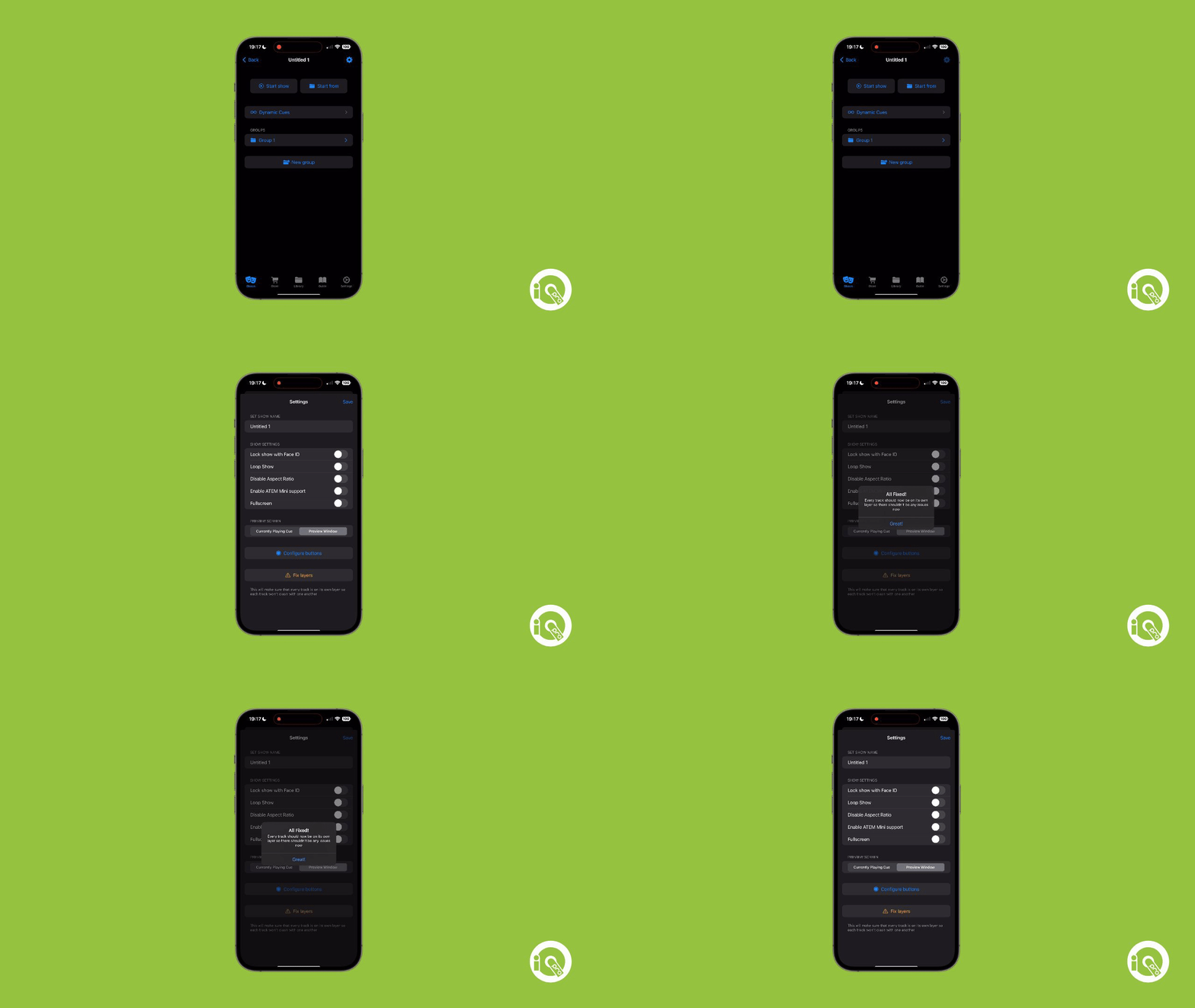
We've also added a way to automate making sure every cue is on its own layer, this can be found by going into your show's settings and pressing the Fix Layers button
Cue
A cue in iQ Pro is an action to run a specific feature in your show. This can include lighting adjustments, playing sounds, triggering videos, showing the live camera or even triggering special effects.
Think of a cue as your command to get the show rolling. It could be something like changing the ambience with a different light color, initiating a dramatic sound effect, or starting a video clip. The beauty of iQ Pro is that you can create cue lists - it's like choreographing your own show. You decide on the sequence of cues, putting them in a specific order to build up your event exactly as you envisioned.
Track
This may come up in a few places within iQ Pro and this website, a track is usually either an audio or video track
Group
One of the main features we wanted to implement into iQ Pro is the ability to organise all your cues easily and this is why we've added a "Groups" system into the app.
Learn more
See a dedicated article explaining what groups are and why we feel they're important